
What is Global Caché?
Global Cache is an American manufacturer of home automation hardware. For example, they produce devices that act as a bridge between IP-based devices and infrared, serial/RS232, and relays.
The company also operates a cloud-based IR database called Control Tower with over 285,000+ IR codes. Anyone can access it for free after registering and verifying their account. With relatively little effort, these codes can also be imported into the remote.
1. Register and verify for Control Tower
- Go to irdb.globalcache.com
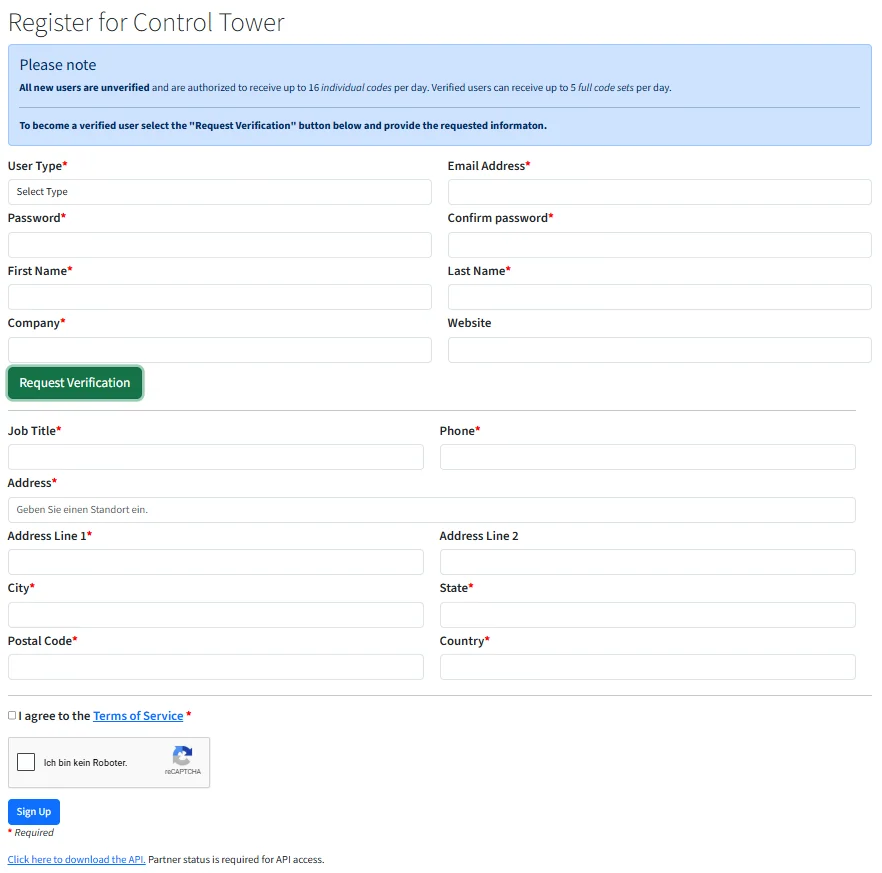
- Click on Register in the top bar and fill out all required fields. You will receive all codes to the mail address you enter here. Don't click on Sign Up yet
- Click on Request Verification and fill out the additional fields.
- Click on Sign Up. Verification is a manual process. Usually you should get you account verified within 24-48 hours
2. Search for codes for your device
- Click on Log in in the top bar, enter your credentials and click on Sign In
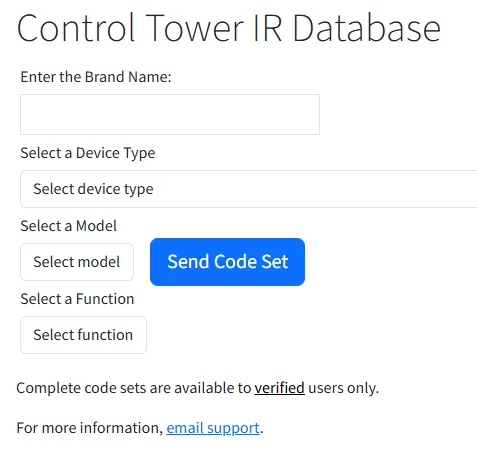
- You are now on the Database page. First need to enter the brand name of you device. After this you are able to select the device type and model
- If your account has been verified you should see the Send Code Set button next to the model field. Click on that button to send the code set to your mail address
Selecting a function is not needed as we want to import all codes of the device at once.
3. Convert the received code set
- You now should have received a mail on the address you used for your Global Caché account. The content first looks a bit strange but it's actually just a CSV table file as plain text.
- Open a plain text editor like Editor/Notepad or Notepad++ on Windows (not Word or Excel) or TextEdit on macOS and copy the complete content of that mail into a new text document`. Make sure to not miss an comma or quote.
- Now look at the first line. Each word separated by a comma represents one column in the CSV table. We just need the column for the command name and the column for the code in PRONTO format. The remote expects the column to be named
keyfor the command name andcodefor the PRONTO code. But Global Caché is using different column names than the remote needs. The command name collumn is calledfunctionand the PRONTO code column is calledhexcode1. We need to adjust these collumn. - In the first line replace the words
functionwithkeyandhexcode1withcode - Save the file as a CSV file. Make sure to not use the .txt extension
4. Importing the CSV file on the remote
How to import IR codes as a CSV file on the remote is explained in this UC support article. It also contains more infos about the CSV file preperation.
Unfolded Circle Support - Importing IR codessupport.unfoldedcircle.comhttps://support.unfoldedcircle.com/hc/en-us/articles/24701875679644-Importing-IR-codes